Move
Magnific Move
Move turns a description into a motion graphic. Describe what you need in your own words, and Move creates a composition with elements such as text, shapes, images, transitions and audio. Ask for changes using natural language, then download your chosen version as an MP4.
You don't need animation skills to get started. Edits create new versions, so you can compare results or return to an earlier direction.
Use Move for product launches, ads, social posts, explainers, animated slides, logo reveals and event announcements.
Create a motion
Open Motion graphics in the Magnific navigation and select Move.
Describe your motion graphic in the prompt box. Include the text, style and sequence you have in mind.
Attach any assets you want to use, such as a logo, product images or a video.
Choose your settings, including the aspect ratio, length and optional Brand Kit.
Press Enter to generate. Use Shift + Enter to add a new line to your prompt.
You can also start from a template. Open one and select Use template, and the template is attached to the prompt box. Describe what you want, add your own images or logo, and Move adapts the template to your content.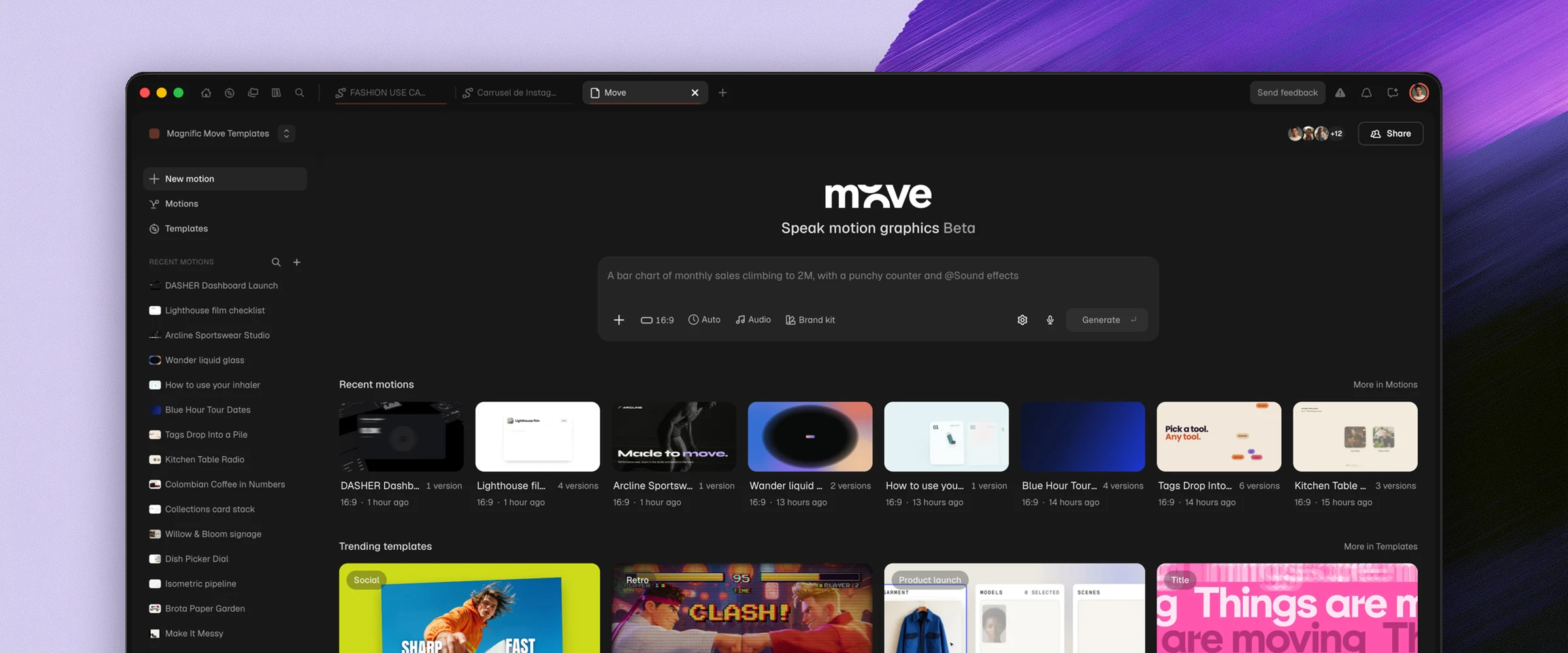
Settings
Aspect ratio: choose 16:9, 9:16, 1:1, 4:5, 4:3 or 21:9.
Length: specify a length or choose Auto. Use Loop when you want a motion designed to repeat.
Brand Kit: use your brand's colors, fonts and images to guide the result.
Audio: include music, sound effects or voiceover. Use the audio switches to control which types are included.
Attachments: add your own images, videos and audio. Type @ in the prompt to refer to an attached file.
Move can also use Magnific’s AI models to generate images, video, 3D and audio for your motion. Just ask in your own words, for example “Generate a close-up of the product on a dark background.” You can control this in Settings > Generate media.
While your motion generates
Move shows its progress through Plan, Write, Review and Finish. It may ask a question or request an asset before continuing. Check the Needs attention section in the sidebar for motions waiting for your response.
Generation time varies. The estimate shown in Move is a guide, not a guaranteed completion time. You can check progress in the browser tab while working elsewhere, or use Stop to cancel the generation.
If Ask first is enabled, Move asks you to confirm when a generation needs additional credits. This does not mean you will receive a confirmation before every generation.
Edit a motion
Select the version you want to work from, then describe the change in the prompt box. For example:
“Make the title bigger.”
“Slow down the last 3 seconds.”
“Change the background to dark blue and use @logo.png at the end.”
You can combine several changes in one request. Review the new version to check the result, including any elements you wanted to keep.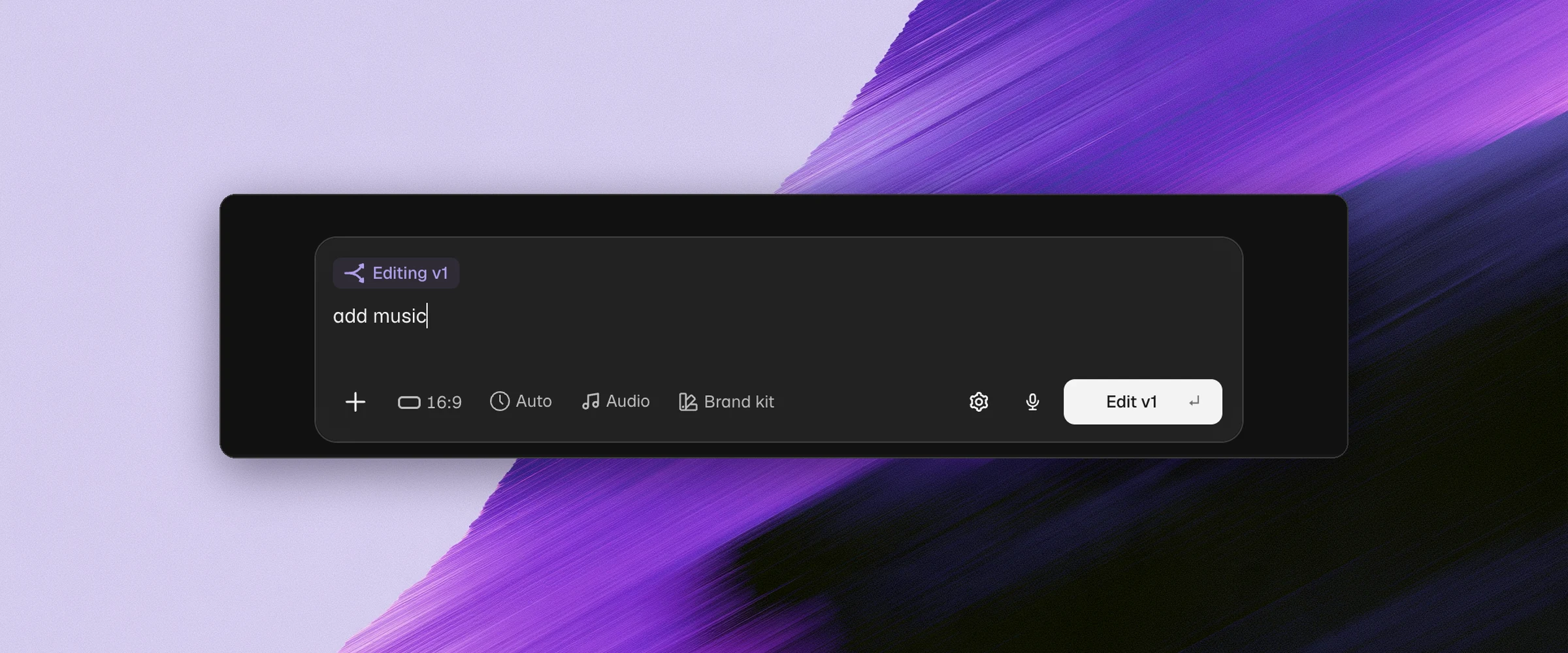
Use a suggestion. Move offers suggested changes above the prompt box. Selecting one adds it to your prompt, where you can adjust it before sending.
Change a setting. You can change settings such as audio, length, loop or Brand Kit and select Edit without writing a new prompt.
Comment on a frame
Pause the video at the moment you want to change and add a comment describing your request. For example, “Use our logo here” or “Keep this text on screen longer.” You can attach a reference to help explain a change.
Add any other comments you need, then select Edit. Move uses the open comments to create the next version.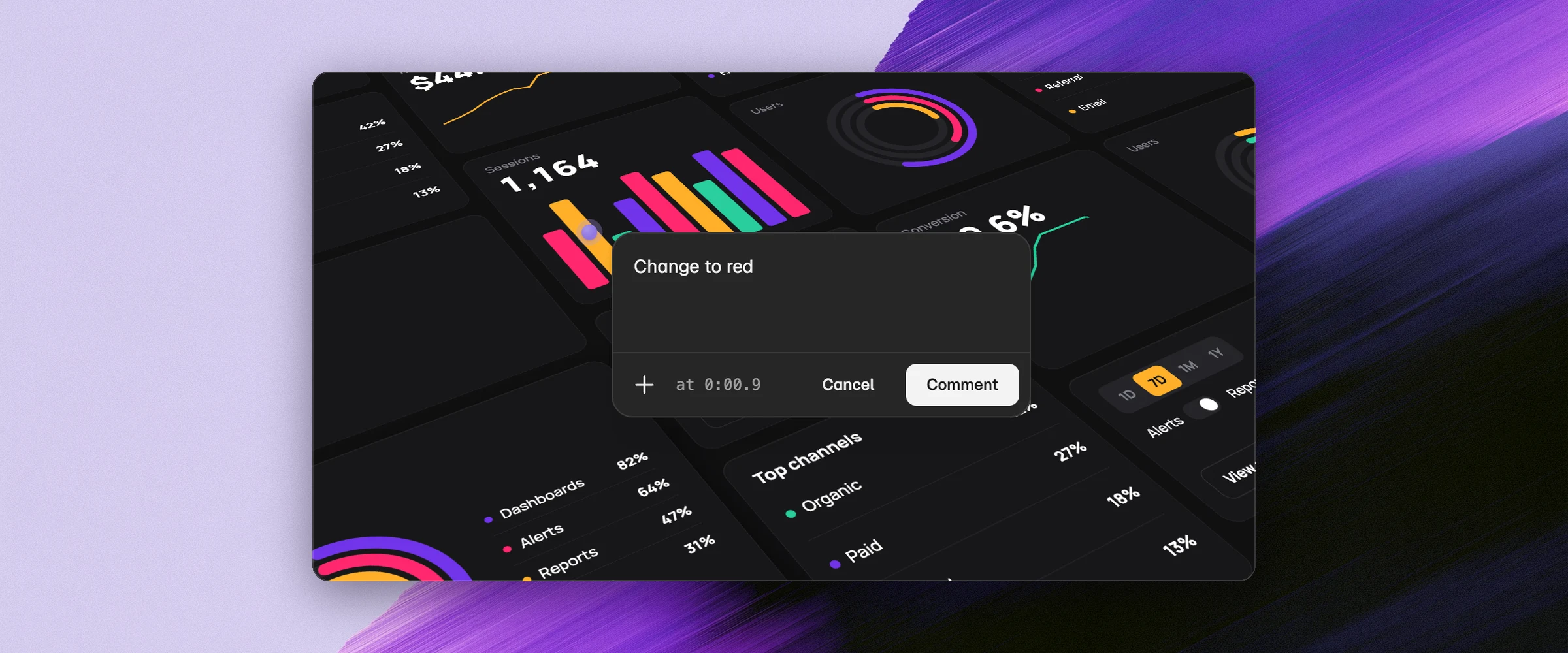
Remix and adapt
Use Recreate to bring a version's prompt, settings and files back into the prompt box. Adjust them before generating a new result.
You can also adapt a motion to another aspect ratio, such as moving from a widescreen composition to a vertical one. Review the adapted version to check its layout, text and pacing before downloading it.
Use Create Brand Kit from this motion to save the colors, fonts and logo of a motion as a new Brand Kit, so your next motions look the same.
Versions and branches
Each generated edit creates a new version while keeping earlier versions available.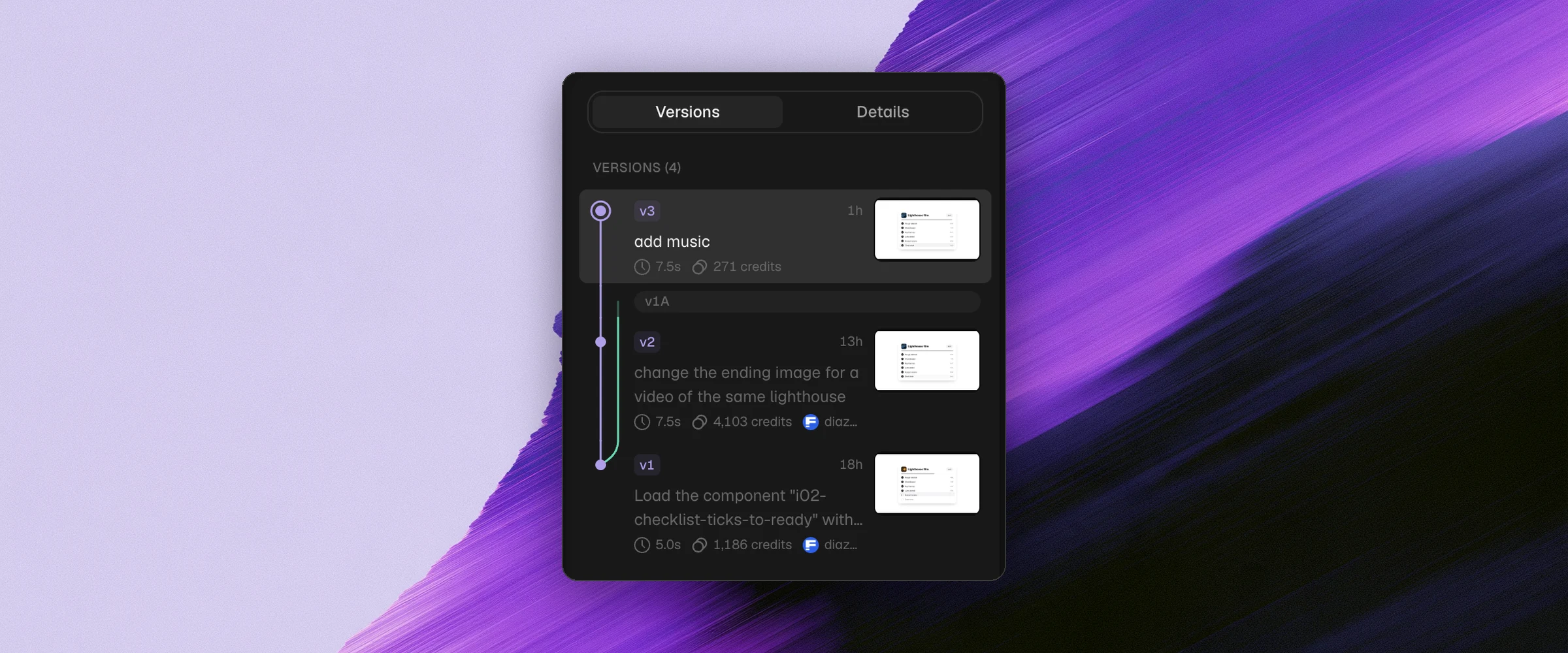
Explore another direction: select an earlier version and edit it to start a branch. Branches can use labels such as v1A and v1B.
Compare: view two versions side by side to review changes.
Star a version: mark an individual version you want to find again.
Favorite a motion: use the heart to mark the motion itself.
Fold a version: hide it from the expanded view without deleting it. Double-click the folded version to restore its expanded view.
Details: inspect information about the selected version, including the assets used.
Brand Kit, audio and visual effects
Brand Kit. Select a kit to guide Move with your colors, fonts and images. Review the result against your brand requirements. You can change the selected kit and apply it in a new version.
Audio. Use the @ menu to work with music, sound effects and voiceover, and the audio switches to control which types are included. To use your own music, attach the file and refer to it in the prompt, for example, “Use @mytrack.mp3 as the music.” You can also reuse audio from an earlier motion.
Visual effects. Describe the effect you want in your prompt, for example, “Add a glitch effect when the logo appears.”
Download an MP4
Select the version you want to download.
Select Download.
Choose the available download settings, including frame rate and motion blur.
Start rendering, then download the MP4 when it is ready.
The available resolution options depend on the motion's canvas size. 4K is not available for every canvas size. Review the options shown for your selected version before downloading.
Motions can be up to 180 seconds long, and you can download them at 24, 30 or 60 fps.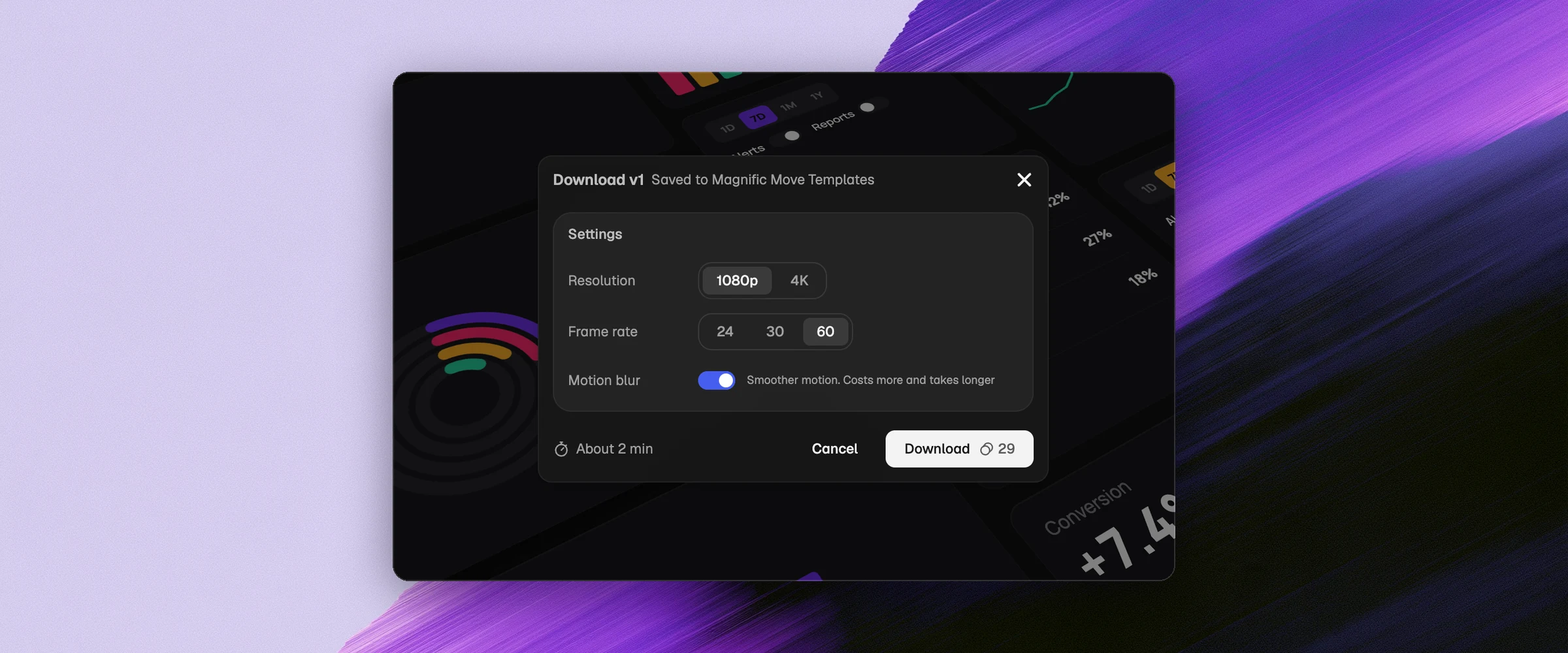
Work with your team
Use a shared Magnific project to work on motions with your team. Project permissions determine what each person can do:
Admins and editors can create new versions.
Viewers can open motions but cannot create versions.
Several people can work on the same motion at the same time. Each person can generate their own versions in parallel, and their avatar appears on the versions they made.
You can also share an individual motion through a guest link without sharing the entire project.
What to use Move for
Move is designed for motion graphics, including animated text, shapes, layouts, charts, logos and transitions. It is not a video-generation model, but you can incorporate video footage into a motion.
For example, attach a product video and ask Move to add a title, logo or supporting graphics. Use the Video generator when your main goal is to generate footage.
Tips
Put the exact text you want on screen in quotation marks.
Describe the sequence, for example, “Show the problem, then the product, then the result. End with the logo.”
Choose the intended format and length before generating.
Attach your logo, product images or screenshots, and refer to them with @.
Use a Brand Kit to provide your colors, fonts and images.
Make change requests specific, then compare the result with the previous version.
Review the downloaded MP4 before using it in a campaign or publishing it.
Frequently asked questions
Do I need animation or design skills?
No. Describe what you want using natural language, then refine it with prompts or comments.
How many files can I attach?
You can currently attach up to 100 files per motion.
Can I change one word or color?
Yes. Describe the specific change in a prompt or comment. Review the resulting version to check it matches your request.
Can I go back to an earlier version?
Yes. Select an earlier version to view it, or edit it to start a new branch. Folding a version does not delete it.
Which file format can I download?
Move downloads your rendered motion as an MP4.
How many credits does Move use?
Each version shows what it cost. Editing a motion uses few credits, but generating images, video or audio for it uses many more. To approve these generations first, turn on Ask first in Settings.